Connecting OpenCode CLI with Jira & Confluence via Model Context Protocol (MCP)
Introduction
Agile methodologies are deeply rooted in enterprise daily workflows. Interacting with Jira issues for ticket management and Confluence for knowledge sharing and technical processes is an essential part of software development.
With the Model Context Protocol (MCP), the OpenCode CLI workflow begins directly inside your terminal by reading Jira issues, referencing linked Confluence pages for workflow instructions, and executing development tasks with full context of user stories and specifications.
Why This Matters
Switching context between code in the terminal and browser tabs with tickets and wikis slows down momentum and disrupts focus. Having full planning and deep understanding of a task—based directly on Jira issues and Confluence documentation—allows OpenCode to act as a truly context-aware coding assistant.
By integrating Atlassian tools via MCP, OpenCode can search for relevant tickets, read specification docs, follow organizational workflows, and keep project management tools updated without ever leaving the command line.
Prerequisites
- OpenCode CLI installed and configured
- Podman installed and running locally
- An active Atlassian Cloud account (Jira & Confluence)
- An Atlassian API Token generated for your user account
Step 1: Generate Atlassian API Token
To allow the MCP server to authenticate with your Atlassian Cloud instance, generate an API token:
- Log in to id.atlassian.com/manage-profile/security/api-tokens.
- Click Create API token.
- Give your token a label (e.g.,
opencode-mcp) and copy the generated token.
Step 2: Set Environment Variables
Export your Atlassian credentials in your shell environment:
export ATLASSIAN_EMAIL="your-email@example.com"
export ATLASSIAN_API_TOKEN="your-atlassian-api-token"
(Tip: Add these exports to your ~/.bashrc or shell profile to make them persistent).
Step 3: Configure OpenCode MCP Settings
Edit your OpenCode configuration file (~/.config/opencode/opencode.json) to register the Atlassian MCP server container:
mkdir -p ~/.config/opencode
nano ~/.config/opencode/opencode.json
Add the mcp server configuration to your opencode.json:
{
  "$schema": "https://opencode.ai/config.json",
  "model": "google-vertex/gemini-3.6-flash",
  "providers": {
    "google-vertex": {
      "package": "@opencode-ai/ai/providers/google-vertex",
      "options": {
        "location": "us-central1"
      },
      "models": {
        "gemini-3.6-flash": {
          "name": "Gemini 3.6 Flash"
        }
      }
    }
  },
  "mcp": {
    "atlassian": {
      "type": "local",
      "command": [
        "podman",
        "run",
        "-i",
        "--rm",
        "-e",
        "JIRA_URL",
        "-e",
        "CONFLUENCE_URL",
        "-e",
        "ATLASSIAN_EMAIL",
        "-e",
        "ATLASSIAN_API_TOKEN",
        "ghcr.io/sooperset/mcp-atlassian:latest"
      ],
      "environment": {
        "JIRA_URL": "https://your-domain.atlassian.net",
        "CONFLUENCE_URL": "https://your-domain.atlassian.net/wiki",
        "ATLASSIAN_EMAIL": "{env:ATLASSIAN_EMAIL}",
        "ATLASSIAN_API_TOKEN": "{env:ATLASSIAN_API_TOKEN}"
      },
      "enabled": true
    }
  }
}
Make sure to replace https://your-domain.atlassian.net with your actual Atlassian domain.
Step 4: Launch and Verify OpenCode
Start OpenCode to load the Atlassian MCP tools:
opencode
After launching OpenCode, send a quick initial prompt to the LLM (for example, please reply hello).
To verify that the MCP server is active, press Ctrl+X followed by b to toggle the sidebar/status panel in the OpenCode TUI interface.
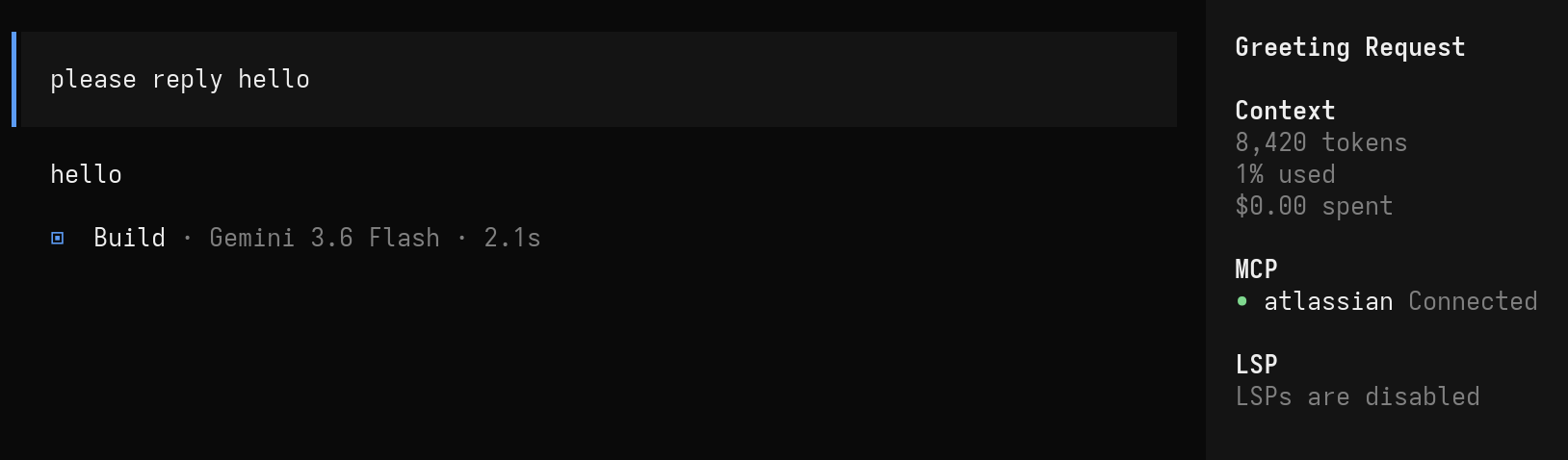
As shown in the sidebar, the atlassian MCP status is visible and connected, indicating that the Jira and Confluence tools are loaded and ready for interaction.
While the MCP server is up and running, you can also verify that the container is active in another terminal tab using podman ps:
podman ps
Output:
CONTAINER ID  IMAGE                                   COMMAND  CREATED        STATUS         PORTS  NAMES
2a8d84b821a8  ghcr.io/sooperset/mcp-atlassian:latest           8 minutes ago  Up 8 minutes         busy_nightingale
You can now use natural language prompts to interact with Jira and Confluence directly:
- "Summarize Jira ticket PROJ-123 and list its requirements."
- "Find Confluence pages about deployment workflows and apply those steps."
- "Update Jira issue PROJ-123 with progress comments."
Troubleshooting & Tips
- Podman Container Issues: Ensure Podman is installed and able to run rootless containers locally (
podman run --rm hello-world). - Authentication Failures: Verify that
ATLASSIAN_EMAILandATLASSIAN_API_TOKENare properly exported in your environment prior to launchingopencode. - Domain Formatting: Double-check that
JIRA_URLandCONFLUENCE_URLinopencode.jsoncorrectly reflect your Atlassian site domain (e.g.,https://company.atlassian.net).
